Example Output
05/06/2025
This section presents an example of the ESG Knowledge Hub's output, demonstrating how the platform generates summaries, recommended content, and key takeaways in response to user questions. It explains interactive features such as linked concepts, article suggestions, and follow-up prompts.
The previous section provided details on how to navigate the UI of the ESG Knowledge Hub's landing page. This section showcases the output generated by the tool based on an example question.
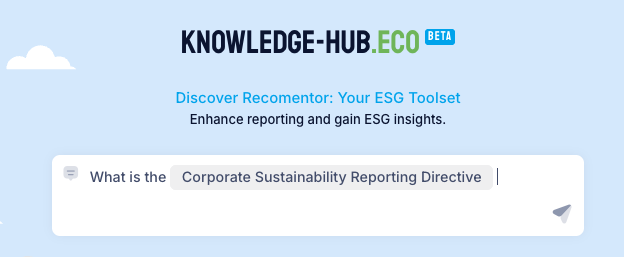
Once a question has been entered in the prompt field, you will be directed to a page containing generated summaries and relevant recommendations. On this page you will find the following UI items:
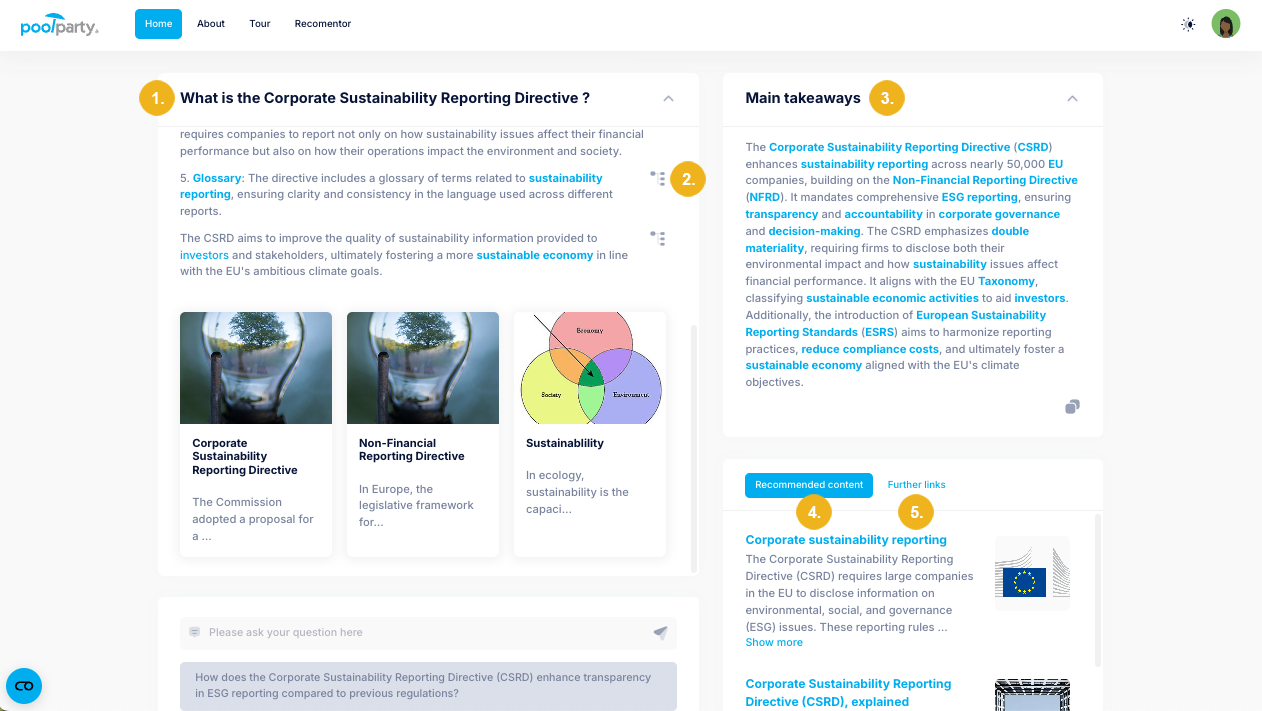
A summary (1) generated by an LLM answering the input query, which has been expanded by the knowledge model. Each paragraph is accompanied by a Recommended content (2) icon which opens a window providing a list of recommended articles based on the extracted concept in this paragraph. Beneath the summary you can find three references that provide additional background knowledge on the subject.
Note
Each highlighted term is a concept that has a link attached to it. Clicking on this link will open a window explaining the selected term. At the bottom of the window you will find a list of relevant Articles, a See more section for more information about the selected term, as well as a list of Synonyms.
The Main takeaways (3) section provides a clear and concise conclusion on the subject. It is generated using GraphRAG with concepts extracted from the summary.
Recommended content (4) lists recommended articles based on extracted concepts found in the generated summary as well as your user profile. In the same section, navigating to the Further links (5) tab will reveal further content related to the concepts extracted from the question, including a summary under each headline for quicker orientation on the topic.
Tip
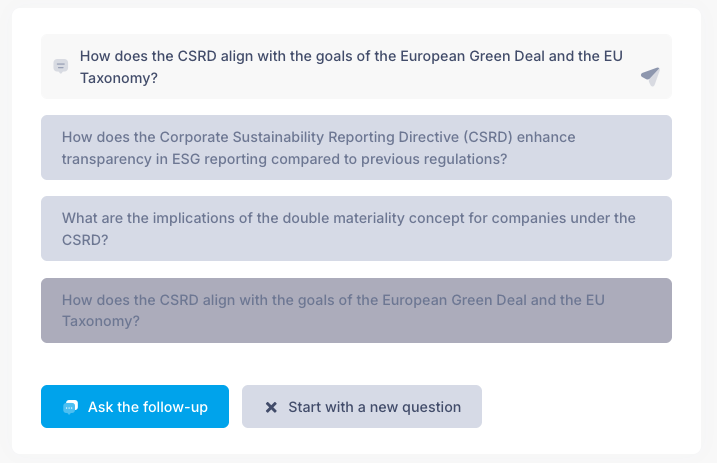
You can refine your answers by engaging with the chatbot and asking follow up questions. Example prompts for follow up questions can be found beneath the summary. After asking a follow up question, you can view previous answers by expanding the section containing the answer to the previous question.