A Quick Start Guide for Recomentor
13/11/25
This section offers a step-by-step guide for new users to get started with the Recomentor platform. It includes access instructions, authentication, and an outline of key features such as compliance checks, indicator use, and framework creation.
This section will guide you through your first steps working with the Recomentor platform.
Getting Access to Recomentor
To perform a compliance check you need to get access to a Lite Demo or Full version of Recomentor.
The Recomentor LITE Demo is a publicly available browser application that you can try out for two weeks after registration. If you don't have an account, you can sign up and login by following these steps:
Visit demo.recomentor.ai to view the Recomentor Login page.
Click Register.
Enter all mandatory data on the Register page, which includes: username, password, email, first and last name, country or region, and the "How did you hear about us?" drop-down. Optionally, enter your company name and your job position. You must read and accept the Recomentor Privacy Policy to register an account. Finally, click the Register button at the bottom of the page.
Within the next 5 minutes, navigate to your email inbox and verify your account by clicking the link in the email sent by the Graphwise Recomentor Support Team.
Login to the Recomentor LITE demo with your credentials.
User authentication for Recomentor is managed via Keycloak.
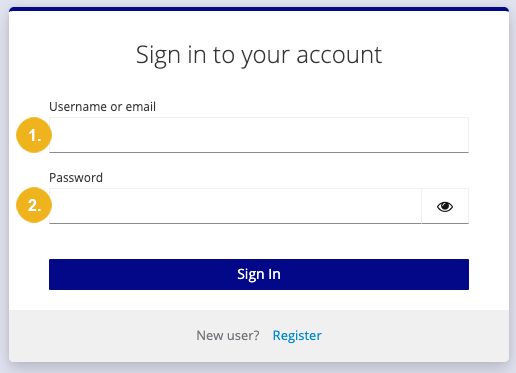
Once you have registered a Recomentor account, you can log in to the platform by entering your username or email (1) as well as your password (2).
PRO Version Features
The LITE Demo version of Recomentor gives you access to a limited set of core features in order to get a feel for the platform. The Recomentor LITE Demo is time-limited, expiring two weeks after your registration, whereas the PRO version is not time-restricted and provides access to all advanced features. With the PRO version you can upload your own ESG reports, customize your own frameworks, access data on over 50.000 companies, and work with the complete library of supported ESG standards. Book a PRO version today to explore everything Recomentor has to offer.
Feature | LITE Demo Version | PRO Version |
|---|---|---|
Knowledge Graph-powered Compliance Checker |
|
|
GenAI-powered Report Intelligence |
|
|
ESG Risks & Opportunities Manager |
|
|
Ready-to-Use ESG Frameworks | 3 | 162 |
Companies for Benchmarking | 100 | 50,000 |
Add companies not yet in the database |
|
|
Upload any missing ESG reports |
|
|
Unlimited Access to the ESG Knowledge Graph |
|
|
Custom Framework Builder |
|
|
Custom Companies & Portfolio Manager |
|
|
Personalized Compliance Report Manager |
|
|


Using the Recomentor Tab Bar
The Recomentor tab bar is located on the left after login. Use it to quickly navigate the platform's main functionalities:
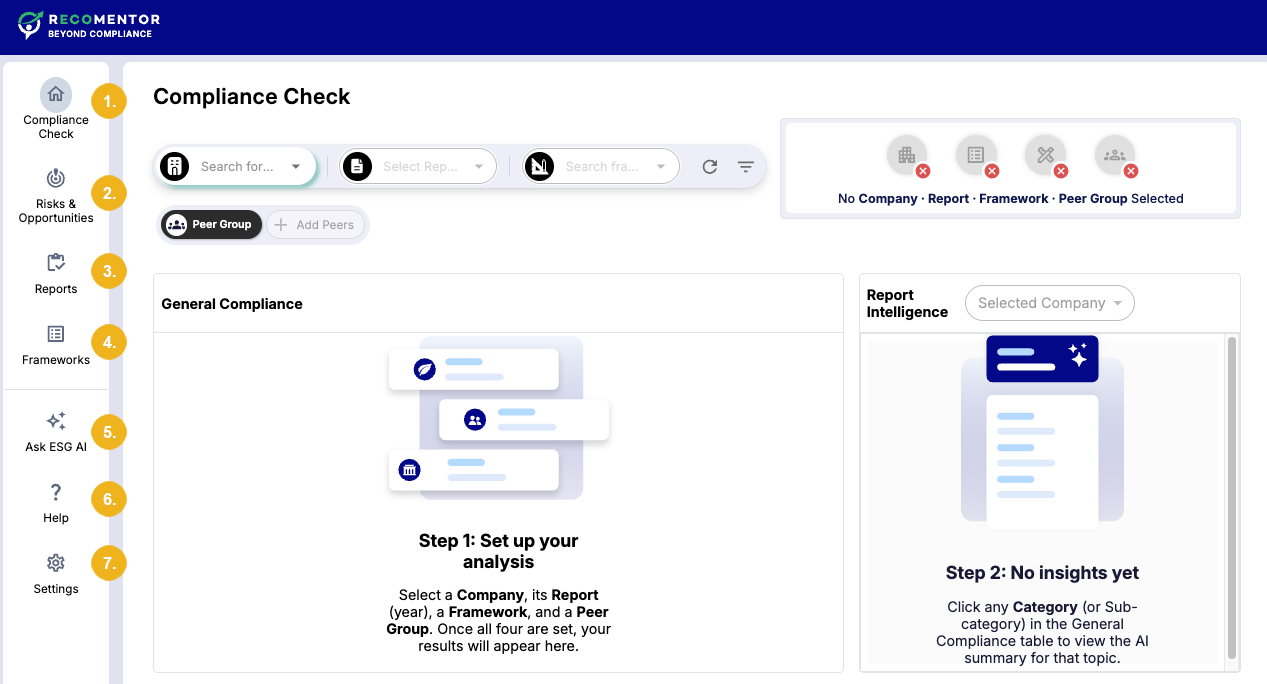
Compliance Check (1): This tab is open by default and can be used to perform ESG compliance checks. Select a company, report, peer groups, and an ESG framework. The resulting Coverage, Specificity, and Ambition indicator scores are displayed. Results in the General Compliance area can be selected to generate detailed reports in the Report Intelligence section.
Risks & Opportunities (2): Calculate the corresponding Risks and Opportunities scores and generate reports based on your configuration.
Reports (3): Manage and organize companies and their corresponding ESG reports.
Frameworks (4): Create custom ESG frameworks (available only with a Recomentor PRO version).
The tab bar also features the following supporting tools:
Ask ESG AI (5): Access the ESG Knowledge Hub, a conversational AI tool which uses GraphRAG and a domain-specific knowledge graph to provide accurate, context-aware answers in the ESG domain.
Help (6): Access the Recomentor documentation.
Settings (7): Access the Logout button to exit the application.
Quick Start Guide Outline
In the subsequent pages we will provide details on how you can: