Setting Parameters for a Compliance Check
27/10/2025
To perform a compliance check, you must configure four core parameters: a benchmark company, its ESG report, an ESG framework, and a customizable peer group.
This page outlines the process for configuring the four parameters needed to perform a compliance check on Recomentor:
a company to benchmark
a corresponding ESG report
an ESG framework
a peer group to compare the selected company with
The workflow will guide you through selecting the initial parameters on the Compliance Check tab and then uses the Peer Filters window to define the comparison group and select their respective reports.
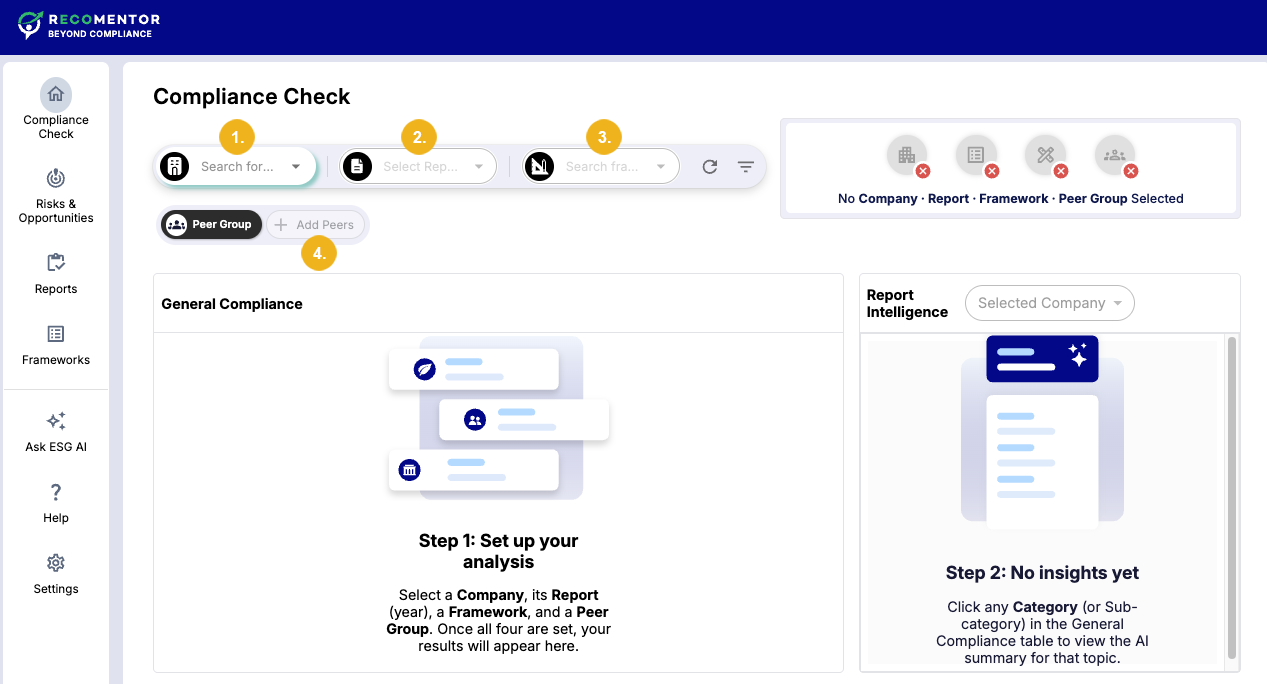
Navigate to the Compliance Check tab to configure the following parameters:
Tip
The icons in the top-right corner indicate the configuration status of each parameter. As you set a parameter, its corresponding 'X' icon will change to a checkmark.
Click the Search for company... search field (1) to open a drop-down menu containing all companies with reports. You can also search the company by name. Select the company you wish to benchmark from the menu. If you can't find your desired company in the database, refer to Managing Companies and Reports for more information on how to create a company profile.
Select a report from the Select Report drop-down menu (2). You can also type in the publishing year of the report in the search field to filter your results.
In the Search frameworks... search field (3), type in the name or acronym of the ESG framework that you wish to compare your selected company's ESG reports with. A drop-down menu with autocompletion helps you find the correct framework as you type. With Recomentor PRO you can also create a custom framework to personalize your compliance check.
Selecting a company, report, and framework unlocks the Add Peers button (4) next to the Peer Group label.
Note
Unless steps 1, 2 and 3 are completed, the Add Peers button will remain grayed out.
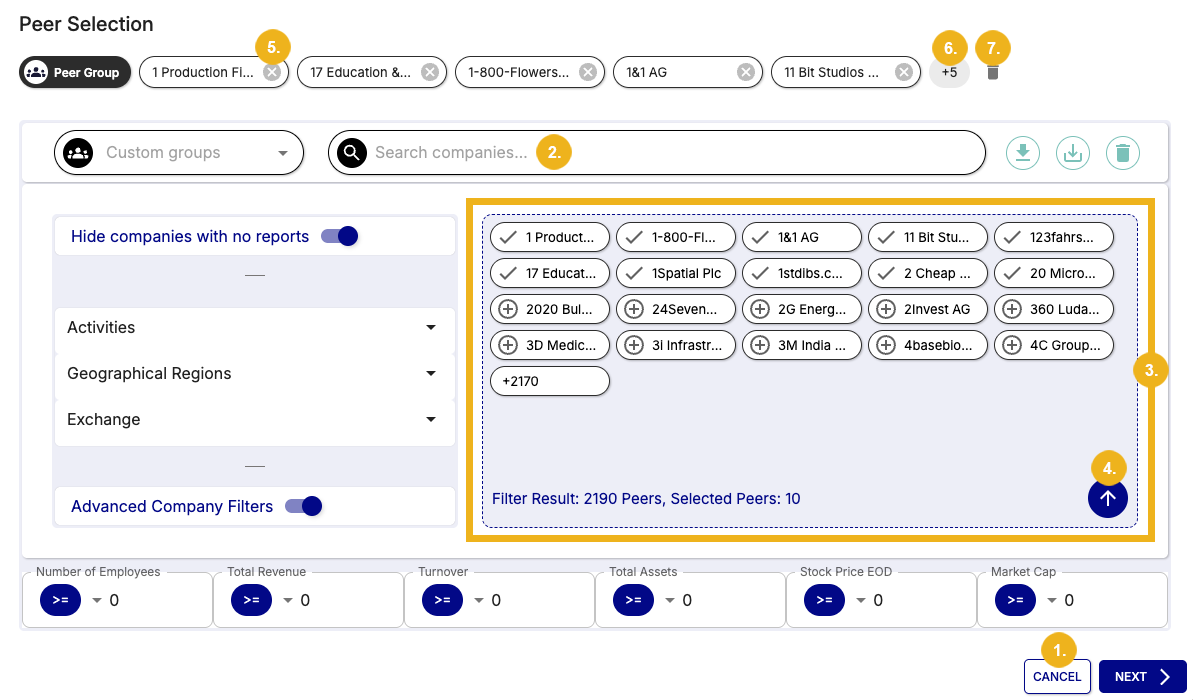
Clicking the Add Peers button will open the Peer Filters window where you can create a peer group to benchmark the selected company against.
Note
You can click Cancel (1) at any time to abort the peer selection process. Keep in mind that exiting out of this window will not save the currently selected peer group.
Use the Search companies... search field (2) to fill the Filter Results panel (3) with matching companies. Select a company to add it to the Peer Group. You can also click the Arrow icon (4) to add all companies in the Filter Results panel to the Peer Group.
All added companies will appear at the top of the dialog next to the Peer Group label in alphabetical order. You can deselect a company by clicking the X icon next to it (5). If you have selected are a large number of companies you can click the +number icon (6) to expand the full list of selected companies and, when expanded, click Hide Full List to hide it again. Click the bin icon (7) to deselect all companies.
You can toggle Hide companies with no reports (8) to control whether companies without any uploaded reports are included in the Filter Results panel.
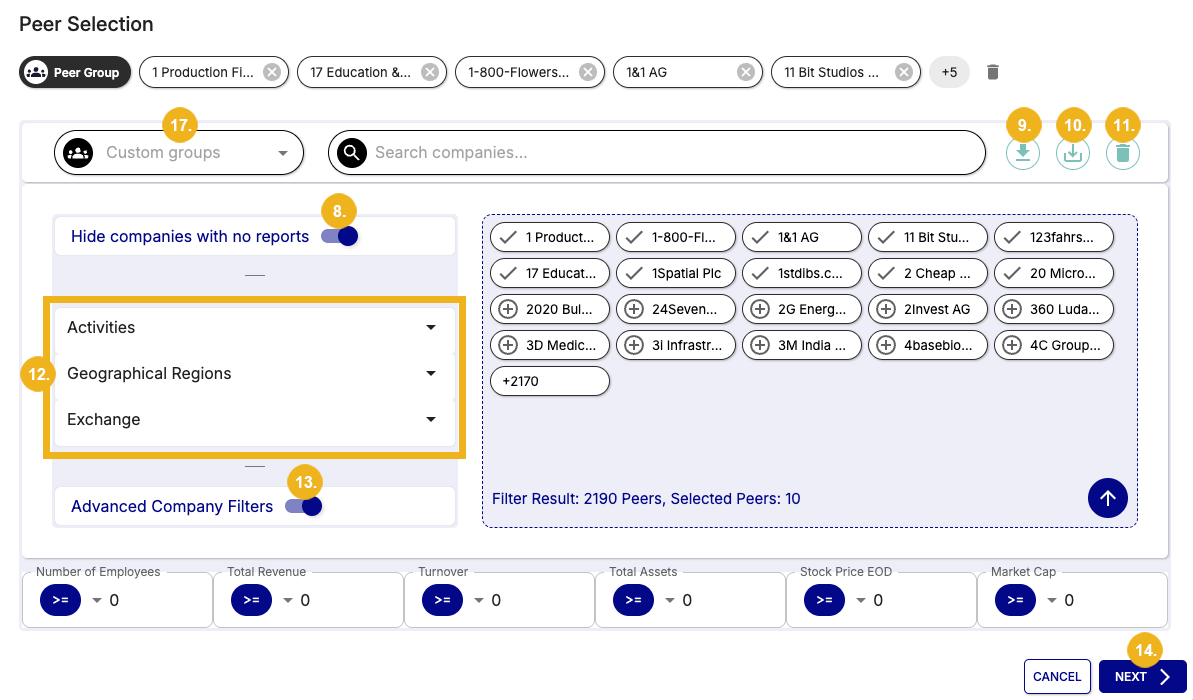
With Recomentor PRO you can load (9) a previously saved filter or save the current selection of companies by clicking the Save icon (10). You can also reset loaded filters by clicking the bin icon (11) next to the search field.
The panel on the left (12) has three filter categories you can expand. The Activities section allows you to choose from a list of predefined peer classification systems and select corresponding activities from a faceted list. In the Geographical Regions section you can filter by countries or regions based on economic or political geography. The Exchange section allows you to select from a drop-down menu of predefined stock exchange types.
Enabling Advanced Company Filters (13) allows you to filter by a minimum amount of employees, total revenue, turnover, total assets, stock price (EOD), and market cap.
Caution
Use Advanced Company Filters only when the database contains sufficient data in the filter categories.
Companies lacking data in the categories you modify will be excluded from the Filter Results panel. For example, if no company has recorded data for Number of Employees, filtering by that category will yield an empty results panel.
If you have at least one company in the Peer Group, you can click Next (14) to continue with the peer selection process.
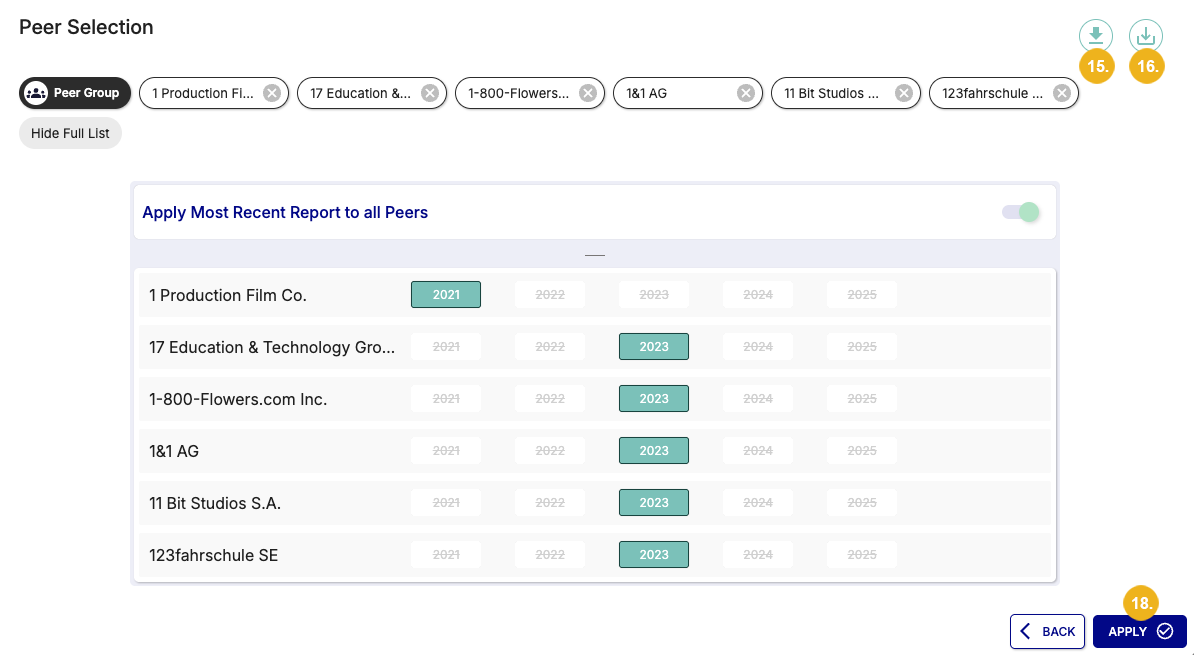
This will open the next page in the Peer Selection window.
Here you can get an overview of all available reports for each selected company. Reports are categorized by the year they were published. For each company you can keep the default report or choose another one from a different year.
If there are multiple reports from different years available, you can also select more than one report for the same company.
Note
If the report you are looking for is not yet in the database and are using Recomentor PRO, you can simply upload it in this window. To do so, hover over the publishing year of the missing report to reveal the Upload button. Click the button, fill in the details in the Upload report window, and select Upload to add the report to the database.
Tip
With Recomentor PRO it is possible to save this combination of a peer group and selected reports as a Custom Group. To do so, click the Save button at the top right corner (15). This configuration can then be selected by clicking the Load button (16) and selecting it from a list of saved custom groups. Alternatively, you can select it on the first page of the Peer Selection window from the Custom Group drop-down menu (17).
Once you have selected a report for each company, select Apply (18) to finish the peer selection process.
After all four required parameters have been set you can view the results of your compliance check.